web analytics

Contact Form 7 Plugin tutorial

I use Contact Form 7 plugin for quite a few things here on MomDot. While the most obvious reason I use it is to receive inquiries on the site for reviews, giveaways, PR releases, and general questions, I also use it for our Ethical Blogger pledge and forum applications. However upon first glance it can be a quite difficult plugin to navigate and can frustrate people in setting it up. It is however easier to use than many a online form builder. I wanted to do a short tutorial to help out those that may be staring at it and on the verge of tears. Its easier than you think once you learn it.

Once you have downloaded and installed into your wordpress program, you can hit ADD NEW to start to create forms. Do not forget to NAME it in case you do several of these over the life of your blog.

Now in my initial form, some standard stuff inputs itself in there to help you out……and this is fine as long as you don’t want anything customized like a drop down, a paragraph, or to have some of your spaces required to be filled out.

Now if you know how to create HTML forms, then you can skip this part and input directly for your coding, add the generated tag to a page and you are done. But if you are like the rest of us, you may need some help with that html tag. Just scroll to the right and there will be a list of “types” for your entries.

Lets practice with the Drop Down Menu.

Let’s say you need a drop down menu. Click on that and this will appear:

Then you have to add your information. Change the title so its something easy to remember for this form. Add your selections, decide if its required (if so check required), decide if there is more than one choice for the drop down. It then will create a tag for you to add into the form on the left.

There will also be a second code generated and you add it below in the email. This is so when the form comes to you, it shows you in your email what question was answered. It’s important to not forget this step or you will get a letter like this:

  • trisha
  • momdot
  • cats
  • i dont like cheese

Basically you will have no clue what you ahd in the form that there were answers like that.

Once you are all done adding every question you need, you can save it and it will generate a tag for the page to be created. All you do is copy that code, create a PAGE on your blog, go to the HTML side, insert this code, save and publish.


For the page we created, it will look like this when published:

I have found that Contact Form 7 has met all of my contact form needs and most importantly has caused very little server overloads, which is great when you are adding in plugins on wordpress.You can download for your blog right in your dashboard on the new plugins side.

~trisha


Towel Swan Tutorial: Easy!

How to make a Towel Swan (Tutorial)

The towel swan is one of the easiest towel animals to create.

I like to make two and place them nose to nose on our guest bed whenever a couple comes to visit.

You will need:

  • 1 bath towel or sheet
  • Sunglasses (optional)

Step 1:

Lay out the bath towel horizontally then fold the top two corners down to meet at the center

Step 2: Press the diagonal folds flat then roll the towel tightly along the diagonal edge. It’s easiest to do this one side at a time.

Step 3: Once both diagonal sides are tightly rolled, flip the shape over

Step 4: Bend the rolled point to form a curved neck. Use a lot of pressure (sit on it if you have to!) so it will stay positioned.

Step 5: Twist and “fluff” the tail to create the illusion of wings.

Enjoy your new feathered friend!

If you’re only making one you might want to add sunglasses for a fun effect. If you are making two, place them nose-to-nose for an elegant look. Want more towel animal tutorials?

Learn how to make a towel animal monkey and a towel animal elephant at Sweet T Makes Three.

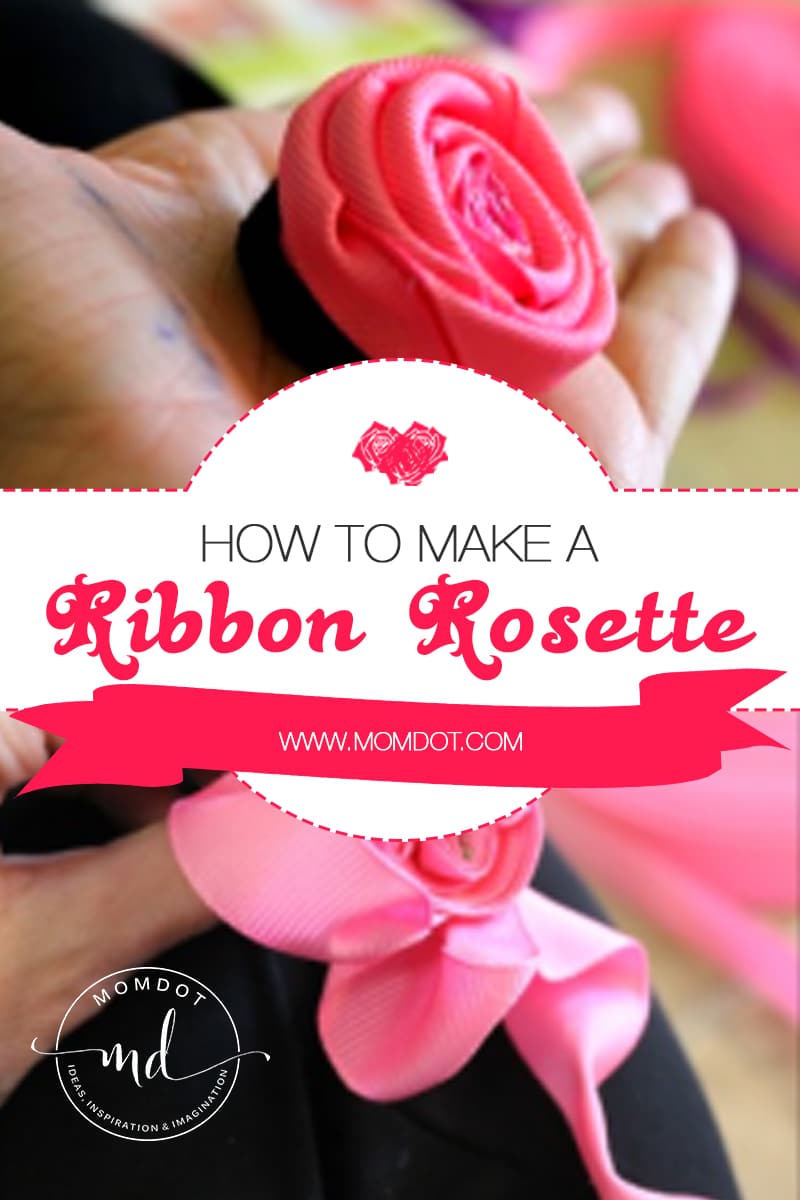
How to make a Ribbon Rosette (tutorial)

I should honestly name this How to NOT make a Ribbon Rosette, because I made about 4 million mistakes before I found something that would qualify in the category of “working”. After all these mistakes, which undoubtedly you have been there if you found this post, i thought it would be beneficial to share what didn’t work (atleast for me), but perhaps inspire you to try a new direction.

Here are my attempts to make a variety of Rosettes, although if you want a simpler craft, you can try my how to make a tutu instead! Working with tulle was so much easier than ribbon. HA! :

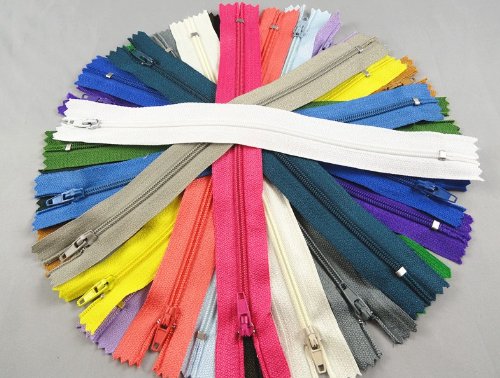
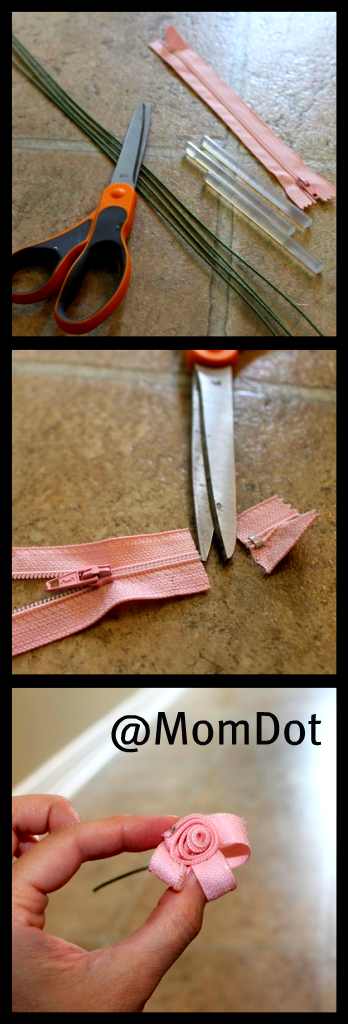
How to make a Zipper Rosette

Materials:

  • Floral Wire
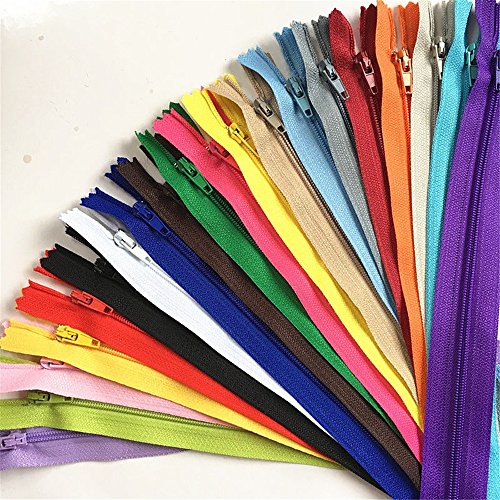
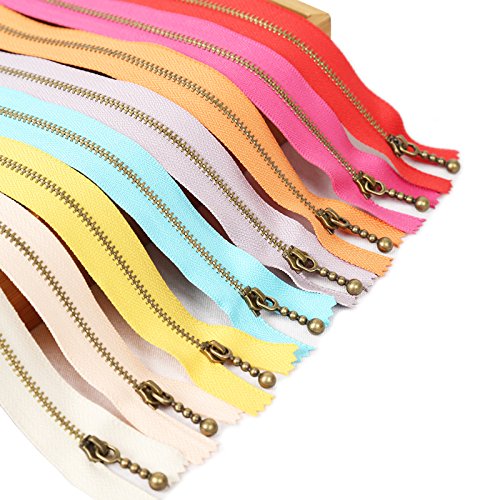
  • Zipper
  • Hot Glue

Step #1: This step is going to be firm with all the Rosettes you make.  After the obvious of cutting the zipper in half, you will begin by securing an end piece to your wire and begin wrapping.

Step #2: Wrap the zipper around, dotting at the baseline, gather and stick. This is where I went wrong. My zipper was WAY too small and I ran out of length before I even had a rose.

Step #3: I took the remainder zipper size and began looping a figure eight around it to make petals. This gave me a half a flower. So there you have it….Half Flower Zipper Rosette.

*cough*
[Read more...]

How to make a custom Brush for photoshop (PSD) to Watermark

If you have photoshop you are already aware of the awesome brushes you can use to customize your online work for scrapbooking, templates, and pictures. There are hundreds of sites online with pre-created brushes like:

But what happens if you want something more personalized or to use for commercial purposes? I wanted to show you a quick and easy way to create your own brushes that you have rights to and can be used to Watermark your images. You can package these brushes for download for others or use for a personal creation.

I also happen to think its a fabulous way to Copyright your photos with your site logo or name.

This can be especially useful as a mom  blogger with pictures of reviews and children on your site. It looks a ton more professional and takes a lot less time than typing text over each photo.

A few before thoughts: Anything white is transparent, so its not necessary to be overly thoughtful on cutting out images with a ton of white around them like the sample below.

Step one:

Pick a photo or text to use for your brush. You can create something by hand in a sheet or use a photo you have taken. Its common sense to know that you need to have rights to the image you use.

I picked an image of MomDots Header Logo.

Make a Custom PSD Brush

Step 2: Your photo or image needs to be turned black and white for best results. CNTRL + SHFT + U = black and white.

Make sure you fine tune after that and sharpen/darken your image.

custombrushPSE

Step 3: Click on the LASSO and select the part of the image you are turning into a brush. For this image, we want the full word of MomDot. You may have a picture where you are cutting out a flower from a group of flowers. This is where you would do that.

makeaPSEbrush

createcustombrush

Step 4: Go to your EDIT on top and scroll down to you reach this:

custombrushinstructions

Step 5: Name your Brush.

namecustombrush

Step 6: Now to test it out!

Go to your brushes and select your new brush. Dont forget to adjust the size and if you want to change the opacity and color.

I pulled a picture of Charlotte to put the logo on.

custombrushtutorial

copyrightphotos

Use for quick and easy marketing of your site or twitter account!

findmeontwitter

And the end result with a copyright that is hard to remove off of your images:

charlottewithpsdbrush

Last but not least, don’t forget to save your new brushes in a preset so they are there next time!

savebrushesinpreset

I hoped this tutorial helps you in continuing to protect and create awesome images and custom designs for your site!

~Trisha